How To copy DVDs with GEAR 7.0
With GEAR, it's easy to back-up or copy DVDs! You can copy software or data files on DVD-ROM discs. You can copy DVD movies. Protect your valuable investment, or create a convenient copy for your second player. GEAR PRO versions support burning to multiple burners at the same time, for quick batch duplication.
With GEAR, copying DVDs is as simple as 1, 2, 3!
- If you have a DVD burner and a second DVD drive, place a blank DVD recordable disc in your burner, and your original DVD in your second drive. If your PC only has a single burner, place your original DVD in the burner.
- Press the disc copier button
 on the GEAR toolbar.
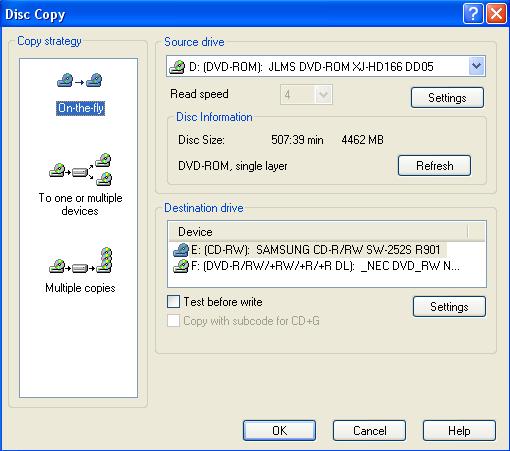
This brings up the disc copy window. on the GEAR toolbar.
This brings up the disc copy window.
- If you want to copy from one drive to another, select "On-the-fly". If you want to copy from one drive to multiple drives (GEAR PRO versions only), select "To one or multiple devices". If you want to make multiple copies of your original, select "Multiple copies". For multiple copies, select the number of copies.
Select your source drive in the top, and the destination drive (or drives, for multiple devices). You can adjust any devices settings, such as "verify after write", or recording speed by clicking the appropriate "Settings" button.
If you have only one drive, or you want to use the same drive to read original and write the copy, GEAR will temporarily store the content on the drive shown at the bottom of the window.
-
Press the "OK" button. Your DVD will be copied quickly and accurately. While it is being copied, you will see a progress indication next to the appropriate device in the device window.

Could it be any easier to copy DVDs?
Note: GEAR cannot copy DVDs that utilize CSS copy protection.
|