


GEAR Video makes it easy to transfer your home movies and videos to DVD.
To create a DVD-Video disc with GEAR Video, just follow these steps...
1. Capture (transfer) video from your camcorder, webcam, or other video source. [If your video is already on your PC, you can skip this step].
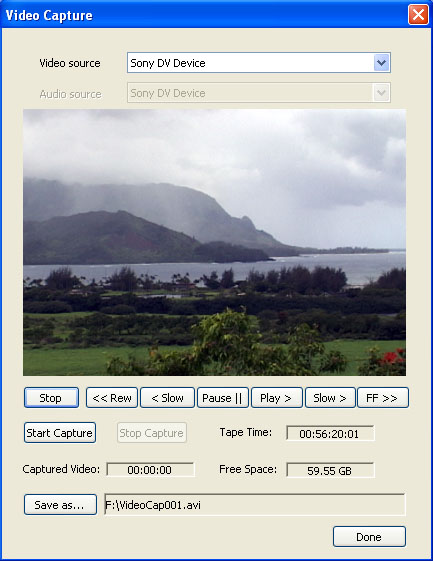
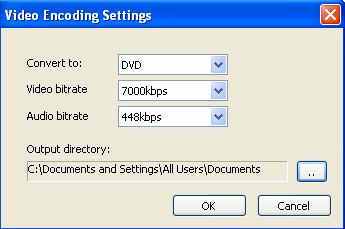
2. Encode your video to DVD-Video format (MPEG-2). GEAR Video can also encode DivX or MPEG files to DVD format.
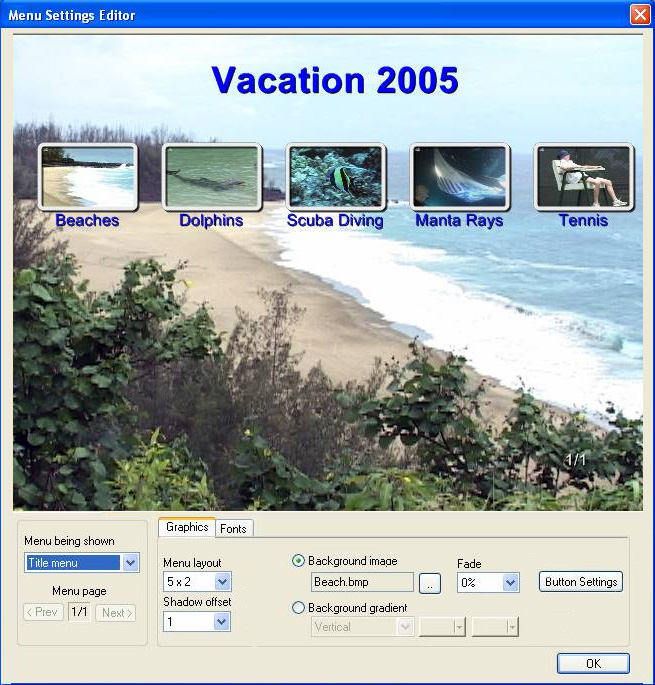
3. Author your DVD-Video title. Authoring is the process of creating a menu, adding audio and video content, and putting all of this content into the proper VCD, SVCD, or DVD-Video format. GEAR Video makes it fast and easy to add movies to your title and arrange the menus.
Once you are finished authoring your project, GEAR will prepare all the necessary files for the DVD title. With your DVD burner selected in the device window, press the "Write Disc" icon  in the GEAR toolbar. That's it! GEAR will burn your DVD-Video disc quickly and reliably. You can even burn to multiple burners at the same time! Just right-click on the burner, select your project, and choose "Write Volume".
Could it be any easier to create DVD Movies?